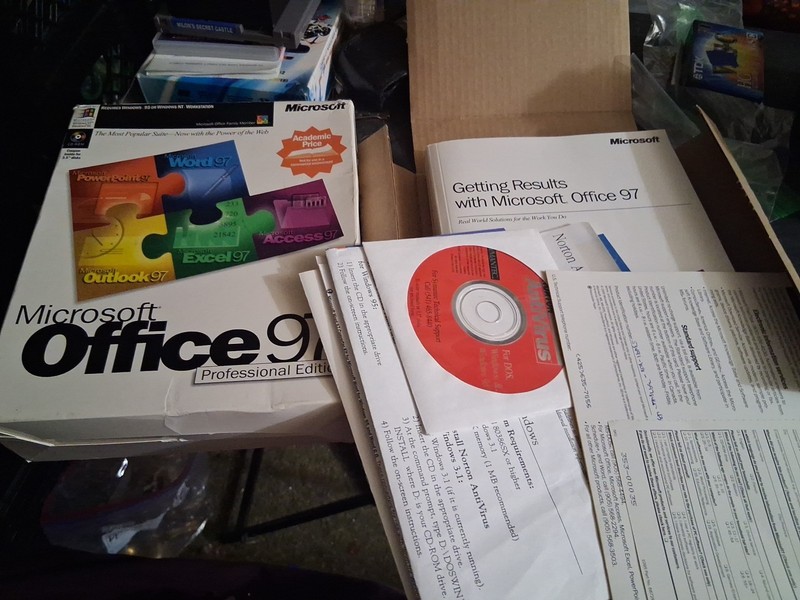
Learn Excel 2010, Windows 7 and Vista All-in-one CD Training Program
Learn Excel 2010, Windows 7 and Vista All-in-one CD Training Program Microsoft Excel 2010 Interactive Tutorial Training Bonus: Windows 7 and Vista Training CD Get to know the new interface of Excel 2010, Windows 7 and Vista immediately Learn how to use Excel 2010 so that you can create spreadsheet with formula, graph, chart and much more.Lessons include text, voice and mouse interaction to accommodate the three basic learning styles: Reading, Hearing and Doing.The best step-by-step self-paced tutorial using the latest elearning solution. No Prior experience of using Excel nor spreadsheet is necessary.Absolute great for beginners and reference for advanced users. Exclusive Training Features: Watch the step-by-step narrated instruction Practice with interactive exerciseTake the Assessment Test to reassure what you have learned Level: Beginner to Intermediate Lesson 1: Getting started with Excel 2010 • The interface of Excel 2010 • Customizing the Quick Access toolbar • Understanding the status bar • Using built-in Help system • Using simple keyboard keys to move around • Using Zoom-in and Mini toobar (new) Lesson 2: Basic Operation • Creating a new workbook • Performing basic operations: edit, move, copy and delete • Adding comments to the cell • Sorting function • Manipulating multiple worksheets • Splitting windows and freezing panes • Protecting your worksheets • Using Print Review • Saving a worksheet • Drag/Drop, Spelling check, Find/Select, & Printing Lesson 3: Worksheet Format • Changing fonts and font styles • Changing number format settings • Adjusting row height and column width • Hiding/unhiding rows and columns • Applying Borders, Shading and Gradient Fill • Using cell formatting Lesson 4: Formulas and Functions • Using Formulas • Entering Formulas • Using Sum Formulas • Using Sum, Average and SumIF Function • Using AutoSum and Max Function Lesson 5: Editing Graphics • Inserting pictures • Editing pictures • Using SmartArt • Inserting shapes • Capturing a Screenshot • Overlapping, grouping,& hiding graphics Lesson 6: Chart Design • Inserting Charts • Changing Font Color and Chart Style • Changing Source Data • Changing layouts and patterns • Changing Chart Layout and Format • Using Format Selection • Inserting WordArt • Displaying source data in the chart Lesson 7: Managing Data Lists and Pivot Table Report • Creating and Filtering a Data List • Using Sort & Filter • Using Subtotal • Creating PivotTable Report Lesson 8: Helpful Keyboard shortcuts and hints • Creating Excel Spreadsheet/chart in Word and PowerPoint • Using Keyboard Shortcuts • Helpful Hints Microsoft Windows 7 Video Training Windows 7 Complete Training Videos are for users who want to master Microsoft's latest operating system. New features like: Libraries, Jump Lists, Desktop Gadgets, Desktop Slide Show, new Aero Effects, Themes and Features like Aero's Peek, Shake and Snap, Pinning Taskbar Shortcuts, enhanced Thumbnail Previews, and more Windows 7 shortcuts! From the basics of creating and organizing files into folders, and then onto more advanced features like enhancing System Performance by our Microsoft Certified Trainer. Table of contentsMicrosoft Windows 7 Basic Level Lesson 1: Exploring Windows 7 1.1 Desktop Enhancements1.2 Navigating the Start Menu And Windows 1.3 Using the Taskbar1.4 Using Libraries1.5 Accessing Help Lesson 2: Working with Windows Explorer and Folders2.1 Windows Explore Of Windows 72.2 Navigation Windows Explorer2.3 Folder Options2.4 How to Manage File And Folders2.5 Search Capabilities Customizing Windows 7 3.1 Customizing Windows Operating System 3.2 How to Customize a Taskbar and Notification3.3 How to Customize Settings of Windows 7 Desktop3.4 Using Desktop Gadget3.5 Libraries Functionality Lesson 4: Using Control Panel 4.1 Understanding Control Panel Views4.2 Configuring Mouse and Sound Settings4.3 Creating and Managing User Accounts4.4 User Account Control 4.5 Adding and Removing Programs Lesson 5: Networking with Windows 7 5.1 Creating and Managing Home Group5.2 Sharing Resources5.3 Internet Explorer 8 Microsoft Windows Vista Tutorial This tutorial is a quick and easy way to master the essential features of Microsoft Vista editions: Home Premium Home Basic You will learn how to personalize your Windows, organize your files and folders, use Windows movie theater, improve your home security, and add parental controls. Lesson Topics:Lesson 1 - Basics to Windows Vista 1.0 Intro to Windows Vista 1.1 Welcome Center1.2 Interface1.3 Start Menu1.4 Task Bar1.5 Side Bar1.6 Windows layout Lesson 2 - Personalizing the Interface 2.1 Desktop Background 2.2 Screen Saver2.3 Theme2.4 Display Settings Lesson 3 - Basic Settings and Application 3.1 Computer Name3.2 Sound3.3 Date and Time 3.4 Mouse 3.5 Windows Calendar 3.6 Region and Language3.7 Search3.8 Recycle Bin 3.9 Power Lesson 4 - Multimedia 4.1 Picture Folder 4.2 Paint 4.3 Snapshot 4.4 Windows Photo Library 4.5 Video Folder4.6 Windows Media Player 4.7 Windows Media Center 4.8 Windows DVD Maker 4.9 Windows Movie Maker 4.10 Sound Recorder Lesson 5 - Folder and Disk Management 5.1 Cut/Copy/Paste/Select All 5.2 Disk Management 5.3 Disk Defragmenter Lesson 6 - Networking 6.1 Internet Explorer 76.2 Local Area Network 6.3 Email 6.4 Sharing over the Network Lesson 7 - Security 7.1 Windows Security Center Basics 7.2 Windows Firewall7.3 Automatic Updates7.4 Malware Protection7.5 Windows Defender7.6 Internet Options Lesson 8 - Parental Controls 8.1 Parental Controls Setting 8.2 Parental Controls Testing and Verification System Requirements: Windows 10, 8, 7, Vista and XP
Specifications
| Return Shipping Will Be Paid By | Buyer |
| All Returns Accepted | Returns Accepted |
| Item Must Be Returned Within | 30 Days |
| Refund Will Be Given As | Money Back |
| Platform | Windows |
| For Operating Systems | Windows |
| Language | English |
| Brand | Microsoft |
The Microsoft brand is present here, which makes it easy to trust the fit and finish.